
Running out of iCloud storage can be frustrating—especially when you’re trying to back up important photos, messages, or app data. One of the biggest reasons people hit their storage limit is old device backups sitting quietly in iCloud, taking up valuable space.
If you’ve been wondering how to delete old backups on iCloud, you’re not alone. Many users don’t realize that backups from old iPhones, iPads, or even devices they no longer own can continue using storage for years.
The good news? Removing outdated backups is quick and simple. In this guide, you’ll learn exactly how to delete old backups on iCloud, free up storage, and keep your account organized without losing important data.
Why Old iCloud Backups Take Up So Much Space
iCloud backups store a lot more than most people expect. They often include:
- App data
- Device settings
- Home screen layout
- iMessages and SMS history
- Photos and videos (if not already in iCloud Photos)
- Health data
- Apple Watch backups
Over time, these backups can become huge—especially if you upgrade devices often.
If you’ve switched from an old iPhone to a new one, chances are the previous backup is still there unless you manually removed it.
How to Check Your iCloud Backup Storage
Before deleting anything, it helps to see what’s using your space.
On iPhone or iPad
- Open Settings
- Tap your Apple ID name
- Select iCloud
- Tap Manage Account Storage or Manage Storage
- Choose Backups
Here, you’ll see all devices linked to your iCloud backups.
On Mac
- Click the Apple menu
- Open System Settings
- Click your Apple ID
- Select iCloud
- Click Manage
- Choose Backups
This gives you a complete view of stored device backups.
How to Delete Old Backups on iCloud Step-by-Step
Now let’s get to the main solution.
Delete iCloud Backups on iPhone or iPad
Follow these steps carefully:
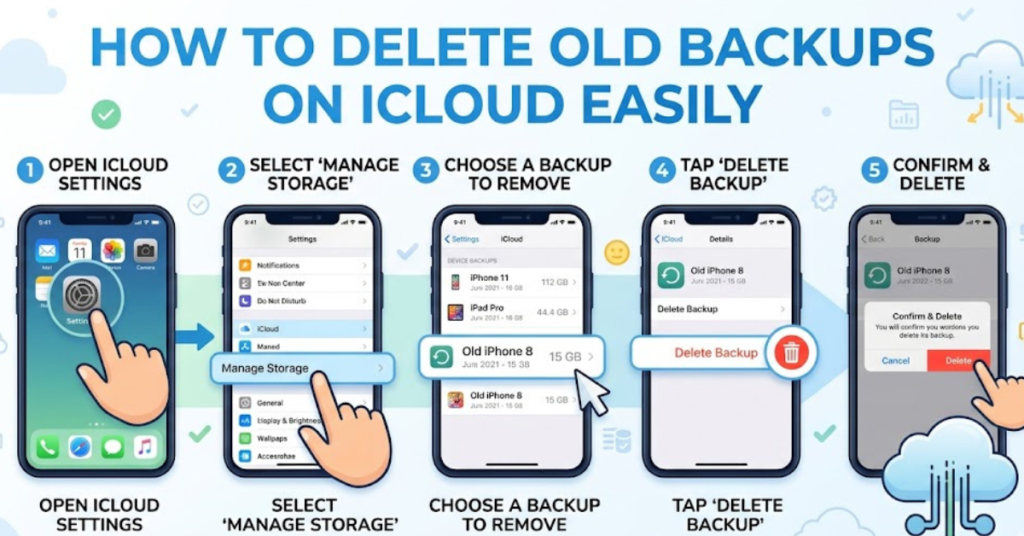
Step 1: Open Settings
Launch the Settings app on your device.
Step 2: Tap Your Name
At the top of the screen, tap your Apple ID profile.
Step 3: Go to iCloud
Select iCloud, then tap Manage Storage.
Step 4: Tap Backups
Choose Backups from the list.
Step 5: Select the Old Device Backup
Tap the backup you no longer need.
For example:
- Old iPhone backup
- Previous iPad backup
- Unused Apple Watch backup
Step 6: Tap Delete Backup
Scroll down and tap Delete Backup.
Step 7: Confirm
Tap Turn Off & Delete if prompted.
That’s it—your old iCloud backup is gone, and storage space is freed instantly.
How to Delete Old Backups on iCloud Using Mac
If you prefer managing storage on your computer:
Step-by-Step Instructions
- Open System Settings
- Click your Apple ID
- Select iCloud
- Click Manage
- Choose Backups
- Select the outdated backup
- Click Delete
This works similarly to the iPhone method.
Should You Delete Old iCloud Backups?
Usually, yes—but only if:
- You no longer use that device
- You’ve already transferred data to your new device
- The backup is outdated
- You need extra iCloud storage urgently
Avoid deleting backups if:
- The device is still active
- You may need to restore it later
- Important app data hasn’t been transferred
Always double-check before deleting.
Other Ways to Free Up iCloud Storage
Deleting old backups helps, but there are more ways to save space.
Additional Storage Cleanup Tips
1. Remove Large Photo Backups
Photos and videos often use the most storage.
Review:
- Duplicate images
- Old screenshots
- Unnecessary videos
2. Delete Old Messages
Especially if they include:
- Videos
- Voice notes
- Attachments
3. Manage App Backups
Some apps back up unnecessary data.
You can disable backups for:
- Games
- Social media apps
- Temporary productivity apps
4. Empty iCloud Drive Clutter
Old files stored in iCloud Drive can quickly pile up.
What Happens After You Delete an iCloud Backup?
When you delete an old backup:
- The backup is permanently removed
- The device can no longer be restored from that backup
- iCloud storage becomes available immediately
It does not affect your current device unless it’s the active backup.
That’s why identifying old backups correctly is important.
Common Mistakes to Avoid
When learning how to delete old backups on iCloud, people often make these mistakes:
Deleting the Current Device Backup
Always verify the device name before deleting.
Assuming Photos Are Included
If iCloud Photos is enabled, photos may not be part of backup storage.
Forgetting Shared Family Storage
If you use Family Sharing, deleting backups may affect available storage for everyone.
Not Checking Backup Dates
Old backup dates help identify what’s safe to remove.
FAQs
How do I delete old backup from iCloud permanently?
Go to Settings > Apple ID > iCloud > Manage Storage > Backups, select the old backup, and tap Delete Backup. This permanently removes it.
Does deleting old iCloud backup delete photos?
Usually no. If you use iCloud Photos, your images are stored separately from backups.
However, if photos were only included in device backup and not synced to iCloud Photos, they may be lost.
Why can’t I delete an iCloud backup?
Possible reasons include:
- Poor internet connection
- iCloud syncing issues
- Apple ID sign-in problems
- Software bugs requiring a restart
Try signing out and back in if needed.
How much storage can deleting backups save?
It depends on the device. Some backups are only a few hundred MB, while others can be several GB—especially older iPhones with large app data.
Is it safe to delete backups from old iPhones?
Yes, if you no longer use the device and don’t need to restore it.
Just make sure important files were already transferred.
Conclusion
Learning how to delete old backups on iCloud is one of the easiest ways to free up storage without paying for a bigger iCloud plan. Old backups from unused devices often sit unnoticed for months—or even years—using valuable space you could use for photos, files, and current backups.
Take a few minutes to review your iCloud storage today. Remove outdated backups, manage app storage wisely, and keep your account running smoothly.