

If your Mac has started slowing down, lagging, or acting strangely, there’s a good chance cached files are part of the problem. Learning how to clear cache on Mac is one of the quickest ways to improve performance without installing anything new. In this guide, you’ll discover exactly what cache is, why it matters, and how to safely remove it from your system and browsers.
What Is Cache and Why Should You Clear It?
Cache is temporary data your Mac stores to help apps and websites load faster. While useful, it can build up over time and cause issues.
Common Reasons to Clear Cache
- Free up storage space
- Fix slow performance
- Resolve app glitches or crashes
- Clear outdated website data
Clearing cache doesn’t harm your system—it simply removes temporary files your Mac can recreate when needed.
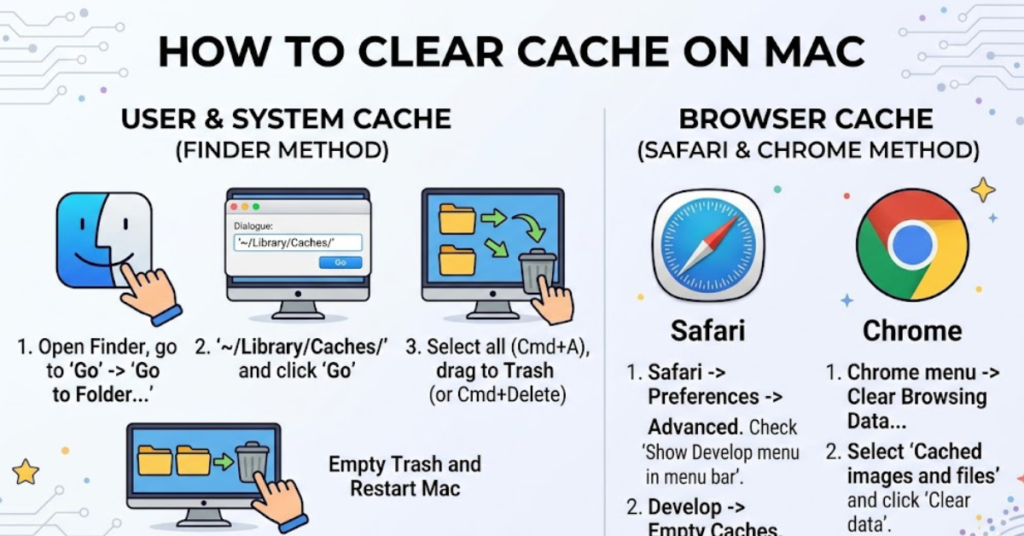
How to Clear Cache on Mac (System Cache)
This method removes cached files stored by macOS itself.
Step-by-Step Instructions
- Open Finder
Click the Finder icon from your dock. - Go to Folder
PressCommand + Shift + G. - Enter cache path
Type~/Library/Cachesand press Enter. - Delete cache files
Select folders and move them to Trash. - Empty Trash
This permanently removes the files.
Important Tip
Only delete files inside the folders—not the folders themselves—to avoid system issues.
How to Clear Cache on Mac Safari
If you mainly browse using Safari, clearing its cache can fix loading problems and outdated content.
Steps for Safari Cache
- Open Safari
- Go to Preferences
- Click the Advanced tab
- Enable “Show Develop menu in menu bar”
- Click Develop in the top menu
- Select “Empty Caches”
This process is quick and doesn’t affect your bookmarks or saved passwords.
How to Clear Cache on Mac Chrome
Google Chrome stores a lot of browsing data, which can slow things down over time.
Steps for Chrome
- Open Chrome
- Click the three-dot menu
- Go to Settings
- Select Privacy and Security
- Click “Clear browsing data”
- Choose “Cached images and files”
- Click Clear Data
This method works whether you’re using a MacBook, desktop, or other Mac devices.
How to Clear Cache on Mac Firefox
If you use Firefox, the steps are slightly different but just as simple.
Steps for Firefox
- Open Firefox
- Click the menu icon
- Go to Settings
- Select Privacy & Security
- Scroll to Cookies and Site Data
- Click “Clear Data”
This clears cached content while keeping your browsing history intact if you choose.
Clearing Cache on Different Mac Devices
No matter which device you use, the process is nearly identical.
Works Across Devices
- MacBook Air and MacBook Pro
- Mac Mini and iMac
- Mac Pro systems
- Older versions like Catalina and newer updates
The steps remain consistent across macOS versions, including recent updates.
How Often Should You Clear Cache?
You don’t need to do this daily. A regular schedule works best.
Recommended Frequency
- Once a month for general maintenance
- When your Mac feels slow
- After major system updates
- If apps or websites aren’t working properly
Clearing cache occasionally keeps your system running smoothly without unnecessary effort.
Risks and Precautions
While clearing cache is safe, a few precautions help avoid issues.
Keep in Mind
- Some apps may take longer to load the first time after clearing
- You may need to log back into certain websites
- Avoid deleting unknown system files outside cache folders
Being careful ensures a smooth and risk-free process.
Extra Tips to Speed Up Your Mac
Clearing cache is just one part of maintenance. Combine it with these tips:
- Restart your Mac regularly
- Remove unused apps
- Keep macOS updated
- Manage startup programs
These habits can significantly improve overall performance.
FAQs
1. Is it safe to clear cache on Mac?
Yes, clearing cache is completely safe and often recommended for better performance.
2. Will clearing cache delete my files?
No, it only removes temporary data. Your personal files remain untouched.
3. Why is my Mac still slow after clearing cache?
Other factors like low storage, outdated software, or background apps may be affecting performance.
4. Do I need special software to clear cache?
No, you can do it manually using built-in tools on your Mac.
5. How long does it take to clear cache?
It usually takes just a few minutes, depending on how much data is stored.
Conclusion
Learning how to clear cache on Mac is a simple but powerful way to keep your device running smoothly. Whether you’re dealing with slow performance, browser issues, or limited storage, clearing cache can make a noticeable difference. With just a few steps, you can refresh your system and improve speed without any technical expertise.
Make it a habit to clear cache regularly, and your Mac will stay faster, cleaner, and more reliable over time.