

Ever opened an Excel sheet only to find the same data repeated over and over? It’s more common than you’d think—and it can quietly ruin reports, calculations, and decisions.
If you’re wondering how to remove duplicates in Excel, you’re in the right place. Whether you’re cleaning up a small list or handling thousands of rows, Excel offers several powerful ways to remove duplicates quickly and safely. This guide walks you through every method—from built-in tools to formulas—so you can choose what works best for your situation.
Why Removing Duplicates in Excel Matters
Duplicate data isn’t just messy—it can lead to serious errors. Here’s why you should care:
- Skewed data analysis
- Incorrect totals and averages
- Confusing reports
- Wasted storage and processing time
Cleaning duplicates ensures your data is accurate, reliable, and easier to work with.
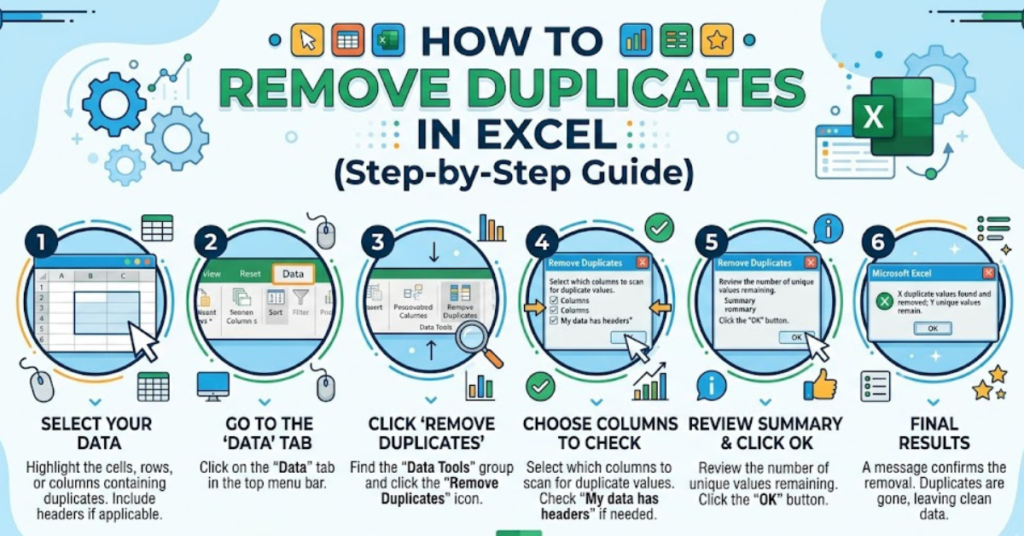
How to Remove Duplicates in Excel (Basic Method)
Using the “Remove Duplicates” Tool
This is the quickest and most commonly used method.
Steps:
- Select your data range (or entire sheet)
- Go to the Data tab
- Click Remove Duplicates
- Choose the columns to check for duplicates
- Click OK
Excel will instantly remove duplicate entries and keep one unique value.
This is the easiest way if you’re asking how to remove duplicates in excel sheet.
How to Remove Duplicates in Excel Column
If you only want to clean one column:
- Select the specific column
- Go to Data → Remove Duplicates
- Ensure only that column is checked
- Click OK
This method works perfectly when you’re focusing on how to remove duplicates in excel column without affecting other data.
How to Remove Duplicates in Excel But Keep One
Excel automatically keeps the first occurrence and deletes the rest.
Tip: If you want to control which duplicate stays:
- Sort your data first (e.g., by date or value)
- Then apply Remove Duplicates
This is the simplest approach for how to remove duplicates in excel but keep one.
How to Remove Duplicates in Excel Based on One Column
Sometimes, duplicates depend on a single column (like email or ID).
Steps:
- Select the full dataset
- Go to Data → Remove Duplicates
- Check only the relevant column
- Click OK
Excel will remove rows where that column has duplicate values.
How to Remove Duplicates in Excel Without Shifting Cells
Direct removal shifts cells upward, which can disrupt layouts. To avoid that:
Use Filters Instead
- Select your data
- Go to Data → Advanced Filter
- Choose Copy to another location
- Check Unique records only
- Select a destination
This keeps your original data intact—ideal for how to remove duplicates in excel without shifting cells.
How to Remove Duplicates in Excel Table
If your data is in a table:
- Click anywhere in the table
- Go to Table Design (or Design tab)
- Click Remove Duplicates
- Select columns and confirm
Tables make duplicate removal more structured and dynamic.
How to Remove Duplicates in Excel Pivot Table
Pivot tables don’t directly remove duplicates, but you can:
- Remove duplicates from the source data first, OR
- Use Value Field Settings → Distinct Count (Excel 2013+)
This is helpful when dealing with summarized data.
How to Remove Duplicates in Excel Using a Formula
If you prefer formulas, try this:
Using UNIQUE Function (Excel 365/2021)
=UNIQUE(A2:A100)This extracts only unique values into a new column.
Using COUNTIF (Older Excel)
=IF(COUNTIF(A$2:A2,A2)=1,"Unique","Duplicate")You can then filter out duplicates.
This approach is ideal for how to remove duplicates in excel formula.
How to Remove Duplicate in Excel Shortcut
While there’s no single universal shortcut, here’s a quick sequence:
- Press Alt + A + M (opens Remove Duplicates dialog)
It’s a handy trick when working frequently with large datasets.
Best Practices for Removing Duplicate
Before you start deleting data, keep these tips in mind:
- Always create a backup of your data
- Check for hidden spaces (use TRIM function if needed)
- Standardize formatting (e.g., text vs numbers)
- Use sorting to control which duplicates stay
- Double-check results after removal
FAQs
1. How do I remove duplicate in Excel without deleting data?
Use the Advanced Filter or UNIQUE function to extract unique values into a new location instead of deleting rows.
2. Can I remove duplicate based on multiple columns?
Yes. In the Remove Duplicate tool, select multiple columns to define what counts as a duplicate.
3. Why is Excel not removing duplicate correctly?
Common reasons include:
- Extra spaces
- Different formatting
- Case differences
Use functions like TRIM and UPPER to clean data first.
4. How do I highlight duplicates instead of removing them?
Use Conditional Formatting → Highlight Cells Rules → Duplicate Values.
5. Does removing duplicates affect formulas?
Yes, if formulas reference deleted rows. Always review formulas after cleanup.
Conclusion
Learning how to remove duplicate in Excel is one of those small skills that makes a huge difference. Whether you use the built-in tool, formulas, or filters, the key is choosing the right method for your data.
Start with the quick Remove Duplicates feature for simple tasks, and move to formulas or advanced filters when you need more control. Clean data leads to better insights—and fewer headaches.
If you found this guide helpful, explore other Excel tips to level up your data skills even further.