
Ever opened a Word document only to find a stubborn blank page that just won’t go away? You’re not alone. Figuring out how to delete a page in Word can feel surprisingly tricky, especially when the page refuses to disappear.
In this guide, you’ll learn simple, practical methods to delete any page in a Word document—whether you’re using Windows, Mac, or Word Online. We’ll also tackle those frustrating cases where a page won’t delete at all.
Why Pages Get Stuck in Word Documents
Before jumping into solutions, it helps to understand why extra pages appear in the first place. Common causes include:
- Extra paragraph marks (¶)
- Page breaks or section breaks
- Tables or images pushing content
- Hidden formatting
Once you know the cause, removing the page becomes much easier.
How to Delete a Page in Word Basic Method
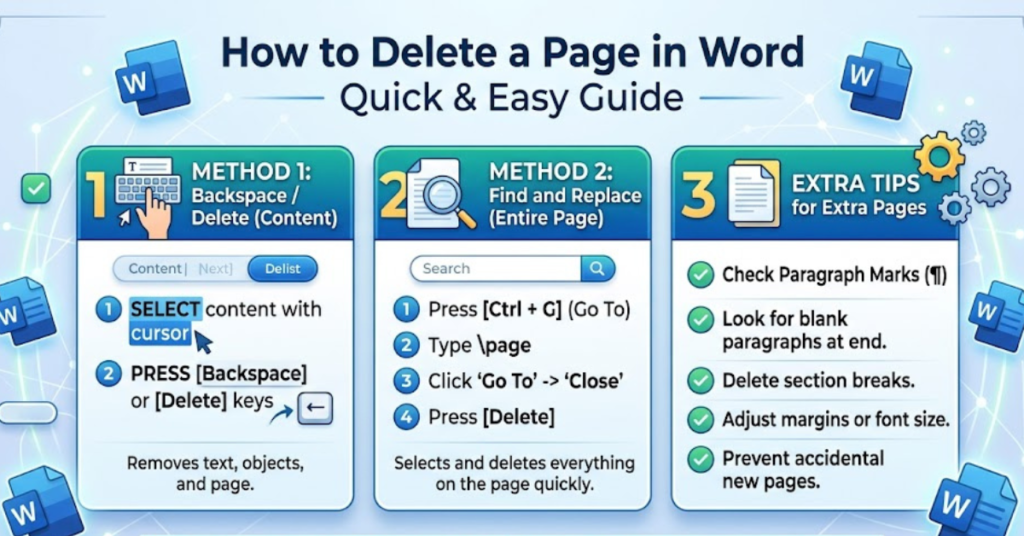
If the page contains text or content, this is the fastest way:
Step-by-Step:
- Open your Word document
- Go to the page you want to delete
- Click and drag to select all the content
- Press Delete (or Backspace)
That’s it—Word will automatically remove the page once the content is gone.
How to Delete a Blank Page in Word
Blank pages are often caused by hidden formatting marks.
Here’s what to do:
- Press Ctrl + Shift + 8 (Windows) or Cmd + 8 (Mac)
- This reveals paragraph symbols (¶)
- Select the extra paragraph marks on the blank page
- Press Delete
If the page disappears, you’ve fixed the issue.
How to Delete a Page in Word That Won’t Delete
Sometimes, a page just refuses to go away. Here’s how to handle it.
Method 1: Remove Page Breaks
- Turn on formatting marks (¶)
- Look for “Page Break”
- Click before it and press Delete
Method 2: Remove Section Breaks
- Find “Section Break (Next Page)”
- Carefully delete it
Note: Deleting section breaks can change formatting, so double-check your document afterward.
How to Delete a Page in Word Using Navigation Pane
This method is useful for longer documents.
Steps:
- Click View → Check Navigation Pane
- Go to the Pages tab
- Select the page thumbnail
- Highlight content and press Delete
How to Delete a Page in Word on Mac
If you’re using a Mac, the steps are similar but with slight differences.
Steps:
- Press Cmd + 8 to show formatting marks
- Select unwanted text or symbols
- Press Delete or Fn + Delete
For stubborn pages:
- Remove page breaks
- Adjust paragraph spacing
How to Delete a Page in Word Online
Using Word in your browser? No problem.
Steps:
- Open your document in Word Online
- Click on the unwanted page
- Highlight all content
- Press Backspace/Delete
Note: Word Online has limited formatting controls, so complex issues may require the desktop app.
How to Delete a Page in Word Doc with Tables
Tables often create hidden blank pages.
Fix:
- Click inside the table
- Reduce font size of the final paragraph mark
- Set spacing to 0 pt
This usually removes the extra page instantly.
Pro Tips to Avoid Extra Pages
- Avoid pressing Enter repeatedly
- Use page breaks instead of manual spacing
- Keep formatting marks visible when editing
- Check margins and spacing settings
FAQs
1. Why can’t I delete a page in Word?
Usually because of hidden formatting like page breaks, section breaks, or extra paragraph marks.
2. How do I delete a blank last page in Word?
Turn on formatting marks (¶), select the extra symbols, and delete them.
3. How to delete a page in Word on MacBook?
Press Cmd + 8, select unwanted content or breaks, and press Delete.
4. Can I delete a page in Word without deleting content?
No—Word pages are based on content. To remove a page, you must remove or move its content.
5. How to delete a page in Word online easily?
Highlight all content on the page and press Delete. For complex formatting, use the desktop version.
Conclusion
Learning how to delete a page in Word doesn’t have to be frustrating. In most cases, it’s just a matter of removing hidden formatting, page breaks, or extra paragraph marks. Whether you’re working on Windows, Mac, or Word Online, the methods are simple once you know where to look.
If you run into a page that won’t delete, don’t panic—just reveal formatting marks and track down the cause. With these techniques, you’ll be able to clean up any Word document quickly and confidently.