

Thinking about stepping away from X (formerly Twitter)? Whether it’s for privacy, productivity, or simply a digital detox, knowing how to delete Twitter account properly is essential. Many users assume deleting their account is instant—but there’s actually a process involved.
In this guide, you’ll learn how to delete Twitter account permanently, how to do it on your phone (including iPhone), and what to do if you can’t log in. Everything is explained in a simple, no-nonsense way so you can take control of your online presence with confidence.
How to Delete Twitter Account Permanently
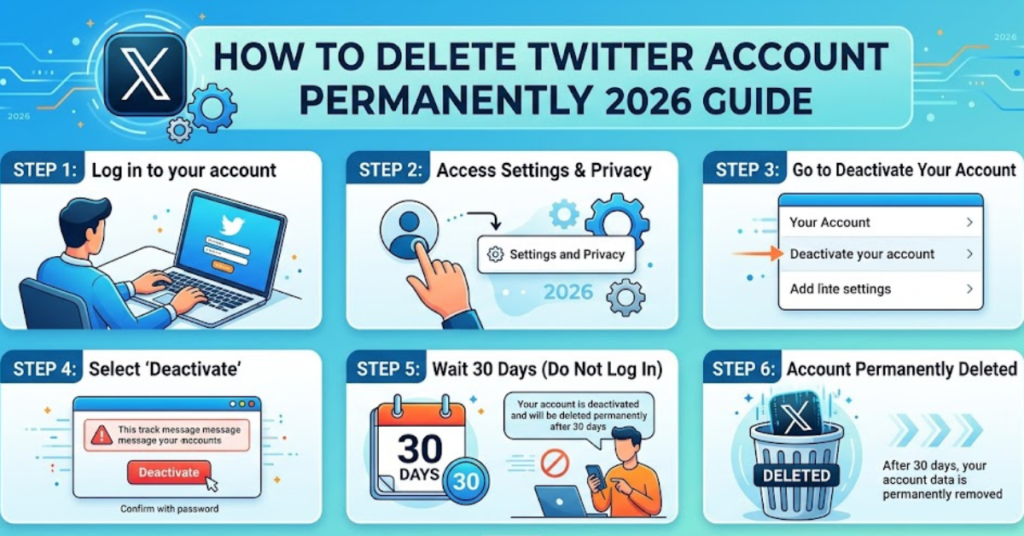
Deleting your Twitter (X) account isn’t immediate—it starts with deactivation, followed by permanent deletion after 30 days.
Step-by-Step Instructions
- Log in to your Twitter (X) account
- Click on “More” (left sidebar on desktop)
- Go to Settings and Privacy
- Select Your Account
- Click Deactivate Your Account
- Read the information carefully
- Click Deactivate
- Enter your password to confirm
Once completed, your account is deactivated. After 30 days of inactivity, it will be permanently deleted.
What Happens After Deactivation?
Before you proceed, it’s important to understand the timeline:
- 0–30 days: Account is deactivated but recoverable
- After 30 days: Account is permanently deleted
- Your username may become available for others
- Some data may still appear in search engines temporarily
If you log back in within 30 days, your account will be restored.
How to Delete Twitter Account on Phone
If you prefer using mobile, the process is just as straightforward.
Android & General Mobile Steps
- Open the Twitter (X) app
- Tap your profile icon
- Go to Settings and Privacy
- Tap Your Account
- Select Deactivate Your Account
- Confirm your password
- Tap Deactivate
This method works for most Android devices and mobile browsers.
How to Delete Twitter Account on iPhone
For iOS users, the steps are nearly identical, but here’s a quick breakdown:
- Open the Twitter app on your iPhone
- Tap your profile picture (top-left corner)
- Go to Settings and Support → Settings and Privacy
- Tap Your Account
- Choose Deactivate Your Account
- Enter your password
- Confirm deactivation
That’s it—your account is now scheduled for permanent deletion.
How to Delete Twitter Account Without Logging In
This is where things get tricky. You cannot directly delete a Twitter account without logging in, but there are a few workarounds:
Option 1: Recover Your Account
- Use the “Forgot Password” feature
- Reset your password via email or phone
- Log in and follow deletion steps
Option 2: Contact Twitter Support
If you’ve lost access to your email or phone:
- Visit Twitter Help Center
- Submit a request for account access
- Provide identity verification if required
Option 3: Report the Account
In rare cases (e.g., hacked or impersonation):
- Report the account to Twitter
- Request removal due to policy violations
Important Things to Consider Before Deleting
Before you finalize the process, keep these points in mind:
- Download your data: Twitter allows you to save your tweets, media, and history
- Disconnect apps: Remove third-party app access
- Update email/username: If you want to reuse them later
- Cancel subscriptions: Like Twitter Blue (X Premium)
Taking these steps ensures you don’t lose important information.
Common Mistakes to Avoid
Many users run into issues because of small oversights:
- Logging back in during the 30-day period (reactivates account)
- Forgetting to cancel paid subscriptions
- Not backing up important data
- Assuming deletion is instant
Avoiding these mistakes will make the process smooth and stress-free.
FAQs
1. How long does it take to delete a Twitter account permanently?
It takes 30 days after deactivation for your Twitter account to be permanently deleted.
2. Can I recover my account after deleting it?
You can recover it within 30 days by logging back in. After that, it’s permanently gone.
3. How to delete Twitter account on phone quickly?
Go to Settings → Your Account → Deactivate Account, then confirm with your password.
4. Can I delete my Twitter account without a password?
No, you’ll need your password. If you forgot it, use the password recovery option.
5. Will my tweets disappear immediately?
Most tweets become invisible after deactivation, but cached versions may remain online temporarily.
Conclusion
Learning how to delete Twitter account permanently is simpler than it seems, but it requires careful attention to detail. The key step is deactivation—once you complete that and stay logged out for 30 days, your account is gone for good.
Whether you’re using a desktop, Android device, or figuring out how to delete Twitter account on iPhone, the process remains consistent and manageable. If you can’t log in, recovery options are your best path forward.