
Your iPhone feels slower, your storage is almost full, and somehow you still have apps you haven’t opened in months. Sound familiar? Learning how to delete apps on iPhone is one of the easiest ways to free up space, improve performance, and keep your device organized.
Whether you want to remove unused games, delete hidden apps, or figure out how to delete apps on iPhone permanently, this guide covers everything you need to know. We’ll also explain specific steps for how to delete apps on iPhone 15, along with solutions for apps that just won’t delete.
Let’s get started.
Why You Should Delete Unused Apps on iPhone
Deleting unnecessary apps does more than just clean up your Home Screen.
Key Benefits of Removing Apps
- Frees up valuable storage space
- Improves device performance
- Reduces background battery usage
- Keeps your Home Screen clutter-free
- Helps improve privacy by removing unused apps with permissions
Many users install apps for temporary use and forget about them. Over time, these apps take up space and can even store hidden cached data.
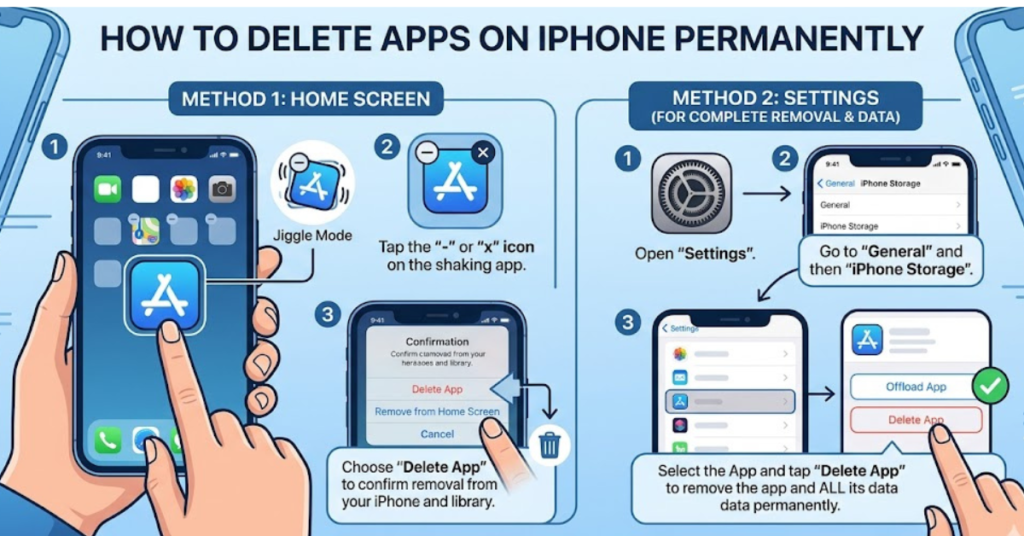
How to Delete Apps on iPhone from the Home Screen
This is the fastest and most common method.
Step-by-Step Instructions
- Find the app you want to remove
- Press and hold the app icon
- Tap Remove App
- Select Delete App
- Tap Delete again to confirm
That’s it. The app and its local data will be removed from your iPhone.
This is the simplest way for anyone searching for how to delete apps on iPhone permanently.
How to Delete Apps on iPhone from Settings
Sometimes apps don’t show clearly on the Home Screen, especially if they’re hidden in folders or the App Library.
Use Settings to Delete Apps
- Open Settings
- Tap General
- Select iPhone Storage
- Scroll down and choose the app
- Tap Delete App
- Confirm by tapping Delete App again
This method also shows how much storage each app uses, making it helpful when clearing space.
How to Delete Apps on iPhone That Are Hidden
Many people struggle with how to delete apps on iPhone that are hidden, especially when apps are removed from the Home Screen but still installed.
Find Hidden Apps in App Library
- Swipe left past all Home Screen pages
- Open the App Library
- Search for the app using the search bar
- Press and hold the app icon
- Tap Delete App
Delete Hidden Apps Through Settings
If the app still doesn’t appear:
- Go to Settings
- Tap General
- Open iPhone Storage
- Locate the app
- Tap Delete App
This ensures the app is completely removed, not just hidden.
How to Delete Apps on iPhone 15
If you recently upgraded, you may wonder about how to delete apps on iPhone 15. The process is mostly the same, but iOS updates may slightly change menu labels.
iPhone 15 App Deletion Steps
- Touch and hold the app icon
- Tap Remove App
- Select Delete App
- Confirm deletion
You can also use the App Library or Settings if the app isn’t visible.
Apple’s newer iPhones make this process smoother, but the core steps remain unchanged.
Delete App vs Offload App: What’s the Difference?
Many users confuse deleting with offloading.
Delete App
- Removes the app completely
- Deletes app data stored locally
- Frees maximum storage
Offload App
- Removes the app itself
- Keeps documents and data
- Allows quick reinstall later
When to Use Offload
Choose offload if:
- You may use the app again soon
- You want to save login details or files
- You need temporary storage space
Choose delete if you want a full removal.
Why Some Apps Cannot Be Deleted
Sometimes the delete option doesn’t appear.
Common Reasons
1. Built-In Apple Apps
Some system apps are restricted or only removable in newer iOS versions.
2. Screen Time Restrictions
Check if app deletion is blocked.
How to Fix It:
- Open Settings
- Tap Screen Time
- Select Content & Privacy Restrictions
- Tap iTunes & App Store Purchases
- Ensure Deleting Apps is set to Allow
3. MDM or Work Device Restrictions
Company-managed iPhones may prevent app deletion.
How to Delete Apps on iPhone Permanently from iCloud
Deleting the app from your phone doesn’t always remove related cloud data.
Remove App Data from iCloud
- Open Settings
- Tap your Apple ID name
- Select iCloud
- Tap Manage Storage
- Find the app
- Delete stored app data if available
This helps if your goal is truly how to delete apps on iPhone permanently.
Tips to Keep Your iPhone Organized
After deleting apps, try these simple habits:
- Review apps once a month
- Use folders for important categories
- Enable automatic offloading for unused apps
- Check iPhone Storage regularly
- Remove duplicate or outdated apps
A cleaner phone often means a faster and less frustrating experience.
FAQs About How to Delete Apps on iPhone
Why can’t I delete app on my iPhone?
This usually happens because of Screen Time restrictions, device management settings, or protected system apps. Check your settings to make sure deleting apps is allowed.
Does deleting an app cancel subscriptions?
No, deleting an app does not cancel subscriptions. You must manually cancel subscriptions through:
Settings > Apple ID > Subscriptions
How do I permanently delete hidden app on iPhone?
Use either the App Library or:
Settings > General > iPhone Storage
Then select the app and tap Delete App.
Can I delete built-in Apple app?
Some built-in apps like Calculator, Mail, and Maps can be deleted, depending on your iOS version. Core system apps like Phone and Messages cannot be removed.
How do I delete app on iPhone 15?
Press and hold the app icon, tap Remove App, then select Delete App. The process is the same as most recent iPhone models.
Conclusion
Knowing how to delete apps on iPhone is a simple but powerful way to keep your device running smoothly. Whether you’re trying to free up storage, remove clutter, or learn how to delete apps on iPhone permanently, the process only takes a few taps.
If you’re dealing with hidden apps, stubborn apps that won’t delete, or managing storage on an iPhone 15, the methods above will help you handle it quickly and confidently.