
Have you ever tried deleting an app on your Mac, only to realize it keeps leaving files behind? You’re not alone. Learning how to delete apps on Mac properly can help free up storage, improve performance, and keep your system organized.
Many users simply drag apps to the Trash, but that’s not always enough. Some applications leave hidden files, cached data, and background processes that continue taking up space. In this guide, we’ll walk through the best ways to remove apps completely from your Mac. We’ll also cover related topics like how to delete apps on iPhone permanently and how to delete apps on iPhone that are hidden, since many Apple users search for both.
Let’s make app cleanup simple.
Why You Should Delete Unused Apps on Mac
Unused apps can do more harm than you think. Even if you haven’t opened them in months, they may still consume:
- Valuable storage space
- System memory
- Background processing power
- Login startup resources
- Cached files and leftover preferences
Removing apps you no longer need can help your Mac run faster and feel less cluttered.
How to Delete Apps on Mac Using Finder
This is the most common and easiest method.
Step-by-Step Guide
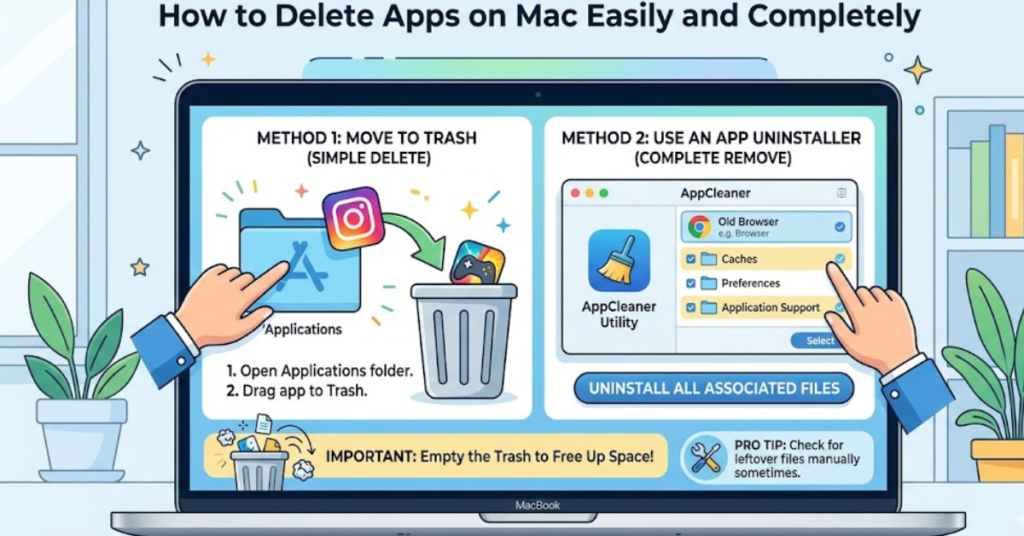
- Open Finder
- Click on Applications in the sidebar
- Locate the app you want to remove
- Right-click the app
- Select Move to Trash
- Empty the Trash to permanently delete it
That’s the standard way of deleting most downloaded apps.
Shortcut Method
You can also:
- Drag the app directly into the Trash
- Or press Command + Delete
This works well for simple apps like Chrome, Spotify, or Zoom.
How to Delete Apps on Mac Using Launchpad
Launchpad is another quick option, especially for apps downloaded from the App Store.
Here’s How
- Open Launchpad
- Find the app you want to delete
- Click and hold the app until it starts shaking
- Click the small X icon
- Confirm deletion
Important Note
If there’s no “X” button, that app likely wasn’t installed through the App Store. In that case, use Finder instead.
How to Completely Delete Apps on Mac
Simply moving an app to Trash doesn’t always remove everything. Many apps leave behind:
- Support files
- Preferences
- Caches
- Login items
- Hidden folders
To fully uninstall an app, you need to remove these leftovers too.
Check These Folders
Open Finder and click:
Go > Go to Folder
Then search these locations:
~/Library/Application Support/~/Library/Caches/~/Library/Preferences/~/Library/LaunchAgents/
Look for folders with the app’s name and delete them carefully.
Be Careful
Only delete files related to the app. Removing random system files can cause problems.
How to Uninstall Built-In Apps on Mac
Apple protects many built-in apps like Safari, Messages, and FaceTime.
In most cases:
- You cannot fully delete them
- You can remove them from Dock
- You can disable some startup behavior
Some system apps require advanced Terminal commands, but this is not recommended for regular users.
Best Third-Party App Uninstallers for Mac
If manual deletion feels too technical, uninstall tools can help.
Popular options include:
- AppCleaner
- CleanMyMac
- AppDelete
- Hazel
These tools scan for leftover files and remove them automatically.
Why Use Them?
They save time and reduce the risk of missing hidden files.
How to Delete Apps on iPhone Permanently
Many users searching how to delete apps on Mac also want to know how to delete apps on iPhone permanently.
Here’s how.
Steps for Permanent Deletion
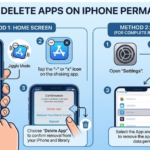
- Press and hold the app icon
- Tap Remove App
- Select Delete App
- Tap Delete again to confirm
This removes the app and its local data from your iPhone.
Also Remove from App Store History?
Even after deleting, the app may still appear in purchase history.
To hide it:
- Open the App Store
- Tap your profile
- Go to Purchased
- Swipe left on the app
- Tap Hide
This helps keep your App Store cleaner.
How to Delete Apps on iPhone That Are Hidden
Sometimes apps seem to disappear but still exist on your device.
If you’re searching for how to delete apps on iPhone that are hidden, try this.
Method 1: Use App Library
- Swipe left past all Home Screens
- Open App Library
- Search for the app
- Press and hold it
- Tap Delete App
Method 2: Use Settings
- Open Settings
- Go to General
- Tap iPhone Storage
- Select the hidden app
- Tap Delete App
This is especially useful when apps are hidden in folders or removed from the Home Screen.
Common Problems When Deleting Apps on Mac
Sometimes apps refuse to delete.
Possible Reasons
- The app is currently open
- It runs in the background
- It’s protected by macOS
- You don’t have admin access
Quick Fixes
Try these:
- Quit the app fully using Activity Monitor
- Restart your Mac
- Log in as Administrator
- Boot in Safe Mode if needed
These steps often solve deletion issues.
Tips to Keep Your Mac Clean
Deleting apps is only part of the solution.
Good Maintenance Habits
- Review installed apps every month
- Remove apps you no longer use
- Clear Downloads regularly
- Manage startup programs
- Keep macOS updated
A clean Mac is usually a faster Mac.
FAQs
Can I just drag apps to Trash on Mac?
Yes, for many apps, dragging them to Trash works fine. However, some apps leave support files behind, so complete removal may require deleting leftover files manually.
Why can’t I delete some apps on my Mac?
System apps and protected apps often can’t be removed normally. Also, apps currently running may need to be closed first.
How do I delete apps on iPhone permanently?
Press and hold the app, tap Remove App, then choose Delete App. This removes it from your device.
How to delete apps on iPhone that are hidden?
Use App Library or go to Settings > General > iPhone Storage to locate and remove hidden apps.
Does deleting an app remove all its data?
Usually yes, but cloud-based data may remain linked to your account. Some Mac apps also leave cache and preference files behind.
Conclusion
Knowing how to delete apps on Mac the right way helps improve storage, speed, and overall system performance. While dragging apps to the Trash works for basic removal, complete uninstallation often requires deleting leftover files too.
If you also use an iPhone, understanding how to delete apps on iPhone permanently and how to delete apps on iPhone that are hidden keeps your entire Apple ecosystem cleaner and more organized.