
Ever opened your Messages app and noticed your sticker drawer packed with old, unused, or accidental stickers you no longer want? You’re not alone. Many iPhone users wonder how to delete stickers on iPhone, especially after upgrading to iOS 17 where stickers became more integrated into Messages.
Whether you want to remove custom stickers made from your photos, delete sticker packs from iMessage, or simply clean up your sticker drawer, the process is easier than most people think. In this guide, we’ll walk you through how to delete stickers on iPhone iOS 17, step by step, so your Messages app stays organized and clutter-free.
What Are Stickers on iPhone?
Before deleting them, it helps to understand what “stickers” actually are on iPhone.
Apple now offers different types of stickers:
- Custom Live Stickers made from your own photos
- Memoji stickers created from your personalized avatar
- Third-party sticker packs from apps like WhatsApp, Telegram, or App Store downloads
- Emoji stickers used directly inside iMessage
In iOS 17, Apple made stickers more accessible, but that also means they can pile up quickly.
How to Delete Stickers on iPhone
There are different ways to remove stickers depending on the type. Let’s break it down.
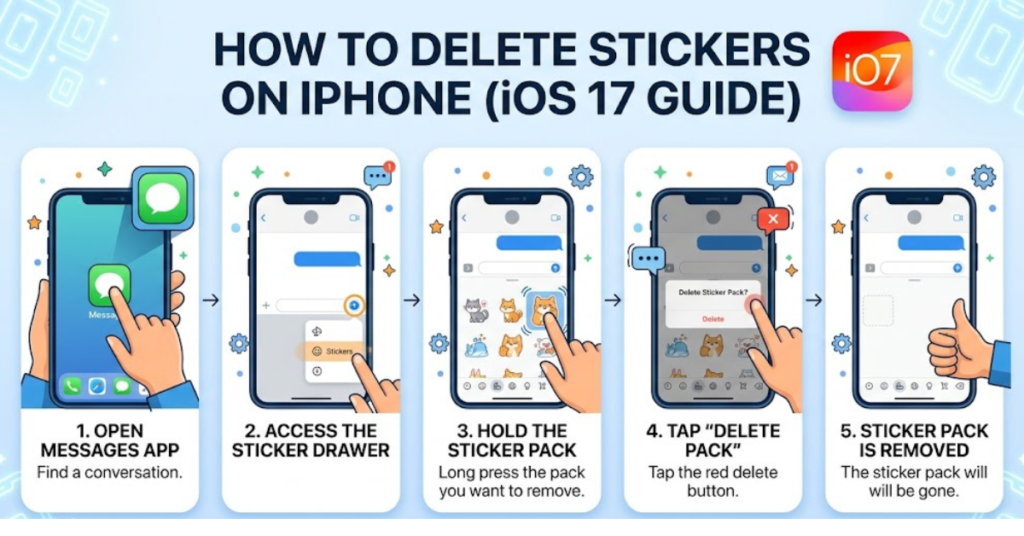
How to Delete Custom Live Stickers on iPhone iOS 17
If you created a sticker from a photo and want to remove it, follow these steps:
Step-by-Step Instructions
- Open the Messages app
- Open any conversation
- Tap the + icon
- Select Stickers
- Tap and hold the sticker you want to delete
- Choose Delete
That’s it—your custom Live Sticker will be permanently removed from your sticker collection.
Important Note
Once deleted, the sticker cannot be restored unless you create it again from the original photo.
How to Delete Sticker Packs from iMessage
Sometimes the clutter comes from downloaded sticker packs rather than custom stickers.
Here’s How to Remove Sticker Packs
- Open the Messages app
- Enter any conversation
- Tap the App Store icon
- Swipe to the sticker/app drawer
- Tap More (three dots)
- Select Edit
- Find the sticker app you want to remove
- Tap Delete or disable it
This helps if you’re trying to clean up old sticker apps you no longer use.
How to Delete Memoji Stickers on iPhone
Memoji stickers are tied to your Memoji avatar. To remove them, you need to delete the Memoji itself.
Steps to Delete Memoji Stickers
- Open Messages
- Tap the Memoji icon
- Select your Memoji
- Tap the three dots
- Choose Delete
Once deleted, the related Memoji stickers disappear as well.
How to Hide Sticker Apps Without Deleting Them
Maybe you don’t want to fully delete a sticker app—you just want it hidden.
To Hide Sticker Apps
- Open Messages
- Tap the App Drawer
- Tap More
- Select Edit
- Toggle off the sticker app
This keeps your Messages app cleaner without uninstalling the app completely.
How to Delete Stickers on iPhone iOS 17 Specifically
With iOS 17, Apple introduced a more advanced sticker experience. Users can create stickers instantly from photos, including Live Photos.
If you’re searching specifically for how to delete stickers on iPhone iOS 17, the main difference is that Live Stickers are managed directly inside the sticker drawer—not through Photos or Settings.
This means:
- You delete them inside Messages
- They are linked to your Apple ID
- They sync across supported Apple devices
So if you remove one from your iPhone, it may also disappear from your iPad or Mac.
Common Problems When Deleting Stickers
Sometimes the delete option doesn’t show up. Here’s why.
Possible Reasons
1. It’s a Built-In Apple Sticker
Some default Apple stickers cannot be deleted, only hidden.
2. iOS Needs Updating
Older versions may not support full sticker management.
Go to:
Settings > General > Software Update
3. App Restrictions
Third-party apps may require deleting the actual app itself rather than just the sticker pack.
Tips to Keep Your Sticker Drawer Organized
Managing stickers regularly saves time later.
Best Practices
- Delete unused sticker packs monthly
- Avoid downloading too many sticker apps
- Keep only your favorite custom stickers
- Hide apps you rarely use
- Update iOS for better sticker controls
A cleaner sticker drawer makes Messages faster and easier to use.
FAQs About How to Delete Stickers on iPhone
Can I delete stickers from Photos on iPhone?
No, stickers created from photos are managed through the Messages app, not the Photos app.
Why can’t I delete some stickers on my iPhone?
Some built-in Apple stickers or system-generated stickers can only be hidden, not permanently deleted.
How do I delete stickers on iPhone iOS 17?
Open Messages > + icon > Stickers, then tap and hold the sticker and select Delete.
Does deleting a sticker remove the original photo?
No, deleting a Live Sticker does not delete the original image from your Photos library.
Can I recover deleted stickers?
Not directly. You’ll need to recreate the sticker from the original photo if you want it back.
How do I remove sticker suggestions from keyboard?
Go to:
Settings > General > Keyboard
Then adjust predictive text or emoji suggestions depending on your preference.
Conclusion
Learning how to delete stickers on iPhone is a simple but useful way to keep your Messages app organized. Whether you’re removing custom Live Stickers, deleting sticker packs, or managing Memoji stickers, iOS 17 gives you better control than ever before.
If you’ve been searching for how to delete stickers on iPhone iOS 17, the key is knowing where each sticker type is stored. Most of the time, the solution starts right inside the Messages app.
Take a few minutes to clean up your sticker drawer today—you’ll enjoy a smoother, less cluttered messaging experience.